How Can Voice to Text Automation Help Lawyers Save Time and Reduce Errors?
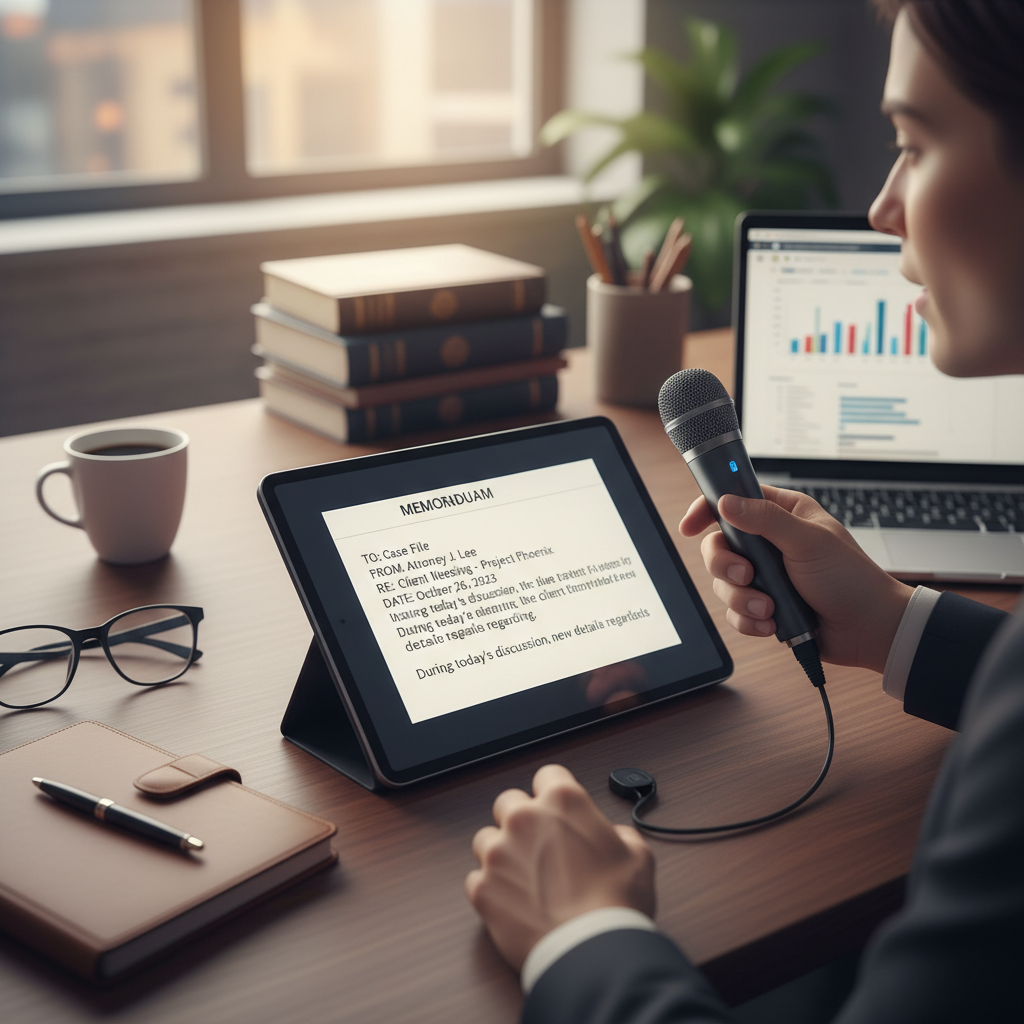
Many legal professionals ask how they can make daily tasks quicker without sacrificing accuracy. Voice to text automation offers a straightforward way to do just that. It allows you to speak your notes, memos, or even entire documents, which are then converted into written text automatically. This simple tool can help you spend less time typing and more time focusing on your cases.
What Is Voice to Text Automation?
Voice to text automation uses software that listens to your speech and turns it into written words. It’s like having a digital assistant that transcribes your spoken words into documents, emails, or notes. You don’t need to learn complex systems or spend hours editing. The goal is to make your work faster and reduce mistakes caused by manual typing.
Why Use Voice to Text in Legal Practice?
- Save Time: Speaking is faster than typing, especially when drafting long notes or emails.
- Reduce Errors: Voice recognition tools catch your spoken words directly, minimizing typos and misreads.
- Ease of Use: No need for technical skills. Most tools are simple to set up and use.
- Stay Focused: Dictate while reviewing documents or during meetings without breaking your flow.
Practical Ways to Use Voice to Text Automation
Here are some practical ways legal professionals can incorporate voice to text tools into their daily routines:
- Drafting Notes and Memos: Use voice commands to quickly jot down thoughts during case review or client meetings.
- Transcribing Recordings: Convert recorded interviews or depositions into written form without manual typing.
- Creating Email Drafts: Speak your email responses to save time on composing messages.
- Updating Case Files: Narrate updates or summaries directly into your case management system.
Recommended Tools for Voice to Text Automation
Several helpful tools are available that connect easily with common devices and software:
- Dragon Anywhere: A mobile app that offers accurate speech recognition for drafting documents on the go.
- Google Docs Voice Typing: Free and simple to use within Google Docs, ideal for quick drafts and notes.
- Microsoft Dictate: Built into Microsoft Office, allowing you to speak directly into Word or Outlook.
- Otter.ai: Transcribes meetings and interviews, with options to edit and organize transcripts.
Tips for Getting the Most Out of Voice to Text Tools
- Speak Clearly: Enunciate words to improve accuracy.
- Use a Good Microphone: A quality microphone reduces background noise and enhances recognition.
- Review Transcripts: Always check the text for errors before saving or sharing.
- Set Up Properly: Spend a few minutes configuring your tool for your voice and environment.
Final Thoughts
Voice to text automation is a simple, helpful tool that can save you time and reduce mistakes in your daily work. By speaking your notes and documents, you can focus more on the substance of your cases rather than the mechanics of typing. With the right tools and a few quick adjustments, this technology can become a helpful part of your routine without feeling overwhelming.